Thursday, April 14, 2022

Learn how to speed up the internet on Android

speed up internet

Increasing the speed of Android internet is one of the needs that all users are looking for. Whether you accept it or not After a while, the number of apps installed on your phone increases. As soon as they connect to the internet, these apps start to sync, and they also allocate a portion of the internet speed to this task instantly. Which will reduce the speed of the Internet in Android. Therefore, it is necessary to increase the internet speed on your phone by using the trick of increasing the internet speed of Android.

If you also feel that the internet speed on your phone has slowed down, join us at the end of this tutorial to introduce the tricks of speeding up the internet. If you use these tricks, your internet speed will increase to a great extent.

Increase  Android internet speed

These days, the use of the Internet has become an integral part of our lives, because a search can find a sea of ​​information. But not everything is so easy and if the internet connection speed is low, we will enter the painful part of the story. Therefore, it is necessary to use the methods that are available to increase the speed of the Internet on an Android phone to increase the speed of the Internet on Android, which I will introduce in the following.

1. Use the browser Data Saver mode

The default browser for the Android phone is Google Chrome, both of which are Google Chrome and the Android operating system is owned by Google. This is why this browser is installed on the phone by default from the time you buy the phone. One of the features of this browser is a feature called Data Saver, which if enabled, you can reduce the use of the Internet to the lowest possible volume, and therefore you will encounter a significant increase in Internet speed in loading sites.

To enable this feature, click on the vertical dots menu icon on the right side of the browser. In this case, you will enter the Settings option, which you must activate the Data Saver option with the switch in the next menu. Data Saver mode uses Google's servers to compress web pages, which will provide you with faster web pages, loading pages faster and thus speeding up the Internet.

2. Use low-volume versions of programs

Many Android app developers offer their apps in two types. One of these is the official program that has a high volume and you can use all the capabilities that the software provides you in the program. But another version, usually called lite, has a smaller volume and the capabilities used are less than the original version of the program in this version.

In these small versions you will only have access to the main features of an application. Successful examples of these programs include twitter lite, facebook lite, Google maps go, etc., which, despite their small size and provide you with less capabilities of the program, but the Internet speed will be better when using these versions. Was.

3. Disable widgets

Most of the used widgets that are commonly available in most of the used applications of the phone include graphic items and data that sometimes you need to be connected to the Internet to display them. That's why it's best to minimize the number of widgets you use on your phone.

In addition, the widgets will be graphical, which will make your phone a little slower due to the allocation of processing resources that are available to display them.

4. Delete extra files from the phone

Using the Internet using a browser or applications that receive data from the Internet requires adequate space and adequate resources. If the number of applications on the phone is high, these resources will be available to other applications, and the more you have, the more problems you will have in using the Internet. Because the browser cache stores the data in cache, if the cache is low, the data is downloaded directly from the site server due to unavailability of cache, which slows down and prolongs the display of data from the Internet.

So it is better to delete the programs that you use less or put them in Force Stop mode or temporary deactivation so that they do not occupy the processing resources of the phone unnecessarily. This will provide resources to other applications and will improve both the speed of the Internet and the speed of the phone.

5. Check Internet settings

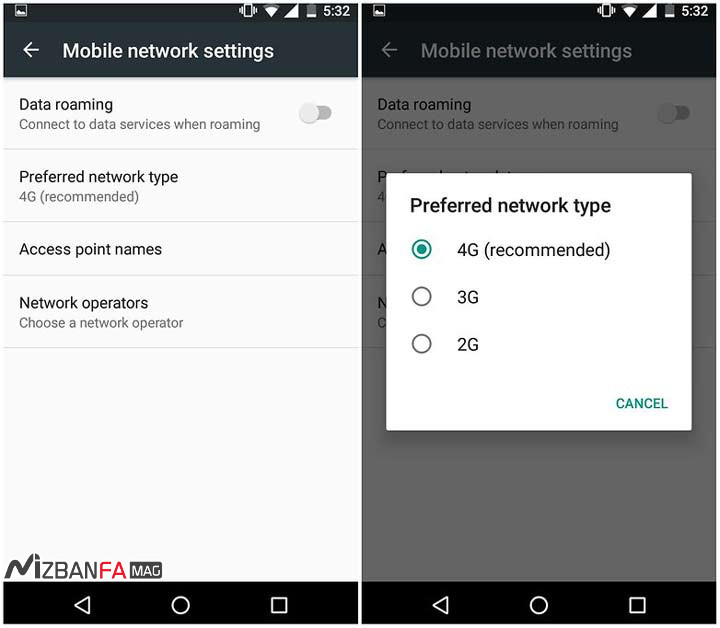
Sometimes the problem of slow internet can be due to the internet settings of the phone on which it is installed. To make sure of this, it is better to go to the network settings or Network Manager Settings of the phone and check the Internet settings for your phone.

Mobile network setting

If the settings are not applied correctly, you can use the following articles to reinstall the Internet settings on your phone.

6. Use the application to increase the speed of the Internet on Android

As mentioned above, some applications require the Internet to run in the background when syncing and will consume your Internet. One way to increase the speed of the Internet in Android is to use programs that prevent the implementation of these programs.

These applications temporarily deprive you of Internet access based on the settings you specify when using the Internet. Therefore, all your internet traffic will be in the possession of a program such as a browser, in which case you can experience more speed on the Internet.

Faster Internet 2x

One of these applications, called Faster Internet 2X, has been released on Google Play, and if you use this application, you can have up to twice as much speed as when the phone applications use the Internet. In addition, these programs will improve the signal reception and antenna of the phone. To download this program, you can click on the button below.

Download Faster Internet 2X

7. Use mobile internet instead of Wi-Fi

According to the internet tariff offered by different companies, the speed of mobile internet can be better compared to fixed internet speed. Therefore, one of the ways that can make you experience a higher internet speed is to use the mobile internet provided by Irancell, Hamrah Aval, Irancell and اپ operators.

With the advent of 4th and 4.5th generation internet, this issue has become more important and it can almost be said that if you are in a location where 4G and 4.5G internet is supported in your network, you will not have any limit on internet speed. Because in order to have faster speed in fixed internet, you have to increase your tariff and incur more costs.

I hope that this tutorial has been of interest to you and with its help, you can increase the speed of the Android Internet. If you have any questions or problems regarding this tutorial and how to increase the speed of the Internet on your Android phone with the help of the Android Internet Speed ​​Up program, let us know in the comments section.

How to register your site on Google Search Console

Google site registration

When site starts operating, many actions are taken for it. 
Google site registration is one of the things we suggest to do. Google has many services in which the site can be registered. But the two things that are most important, especially in the SEO discussion , and we will address them in this tutorial, are site registration in Google Webmasters ( Google Webmasters ) and Google Analytics ( Google Analytics ). Stay with us.

Google Webmasters

Google Webmasters, which is the part we refer to in the search console , is a place where you can register a site and enjoy many features for free. Some of the features are as follows:

  • View the number of searches and clicks from Google search
  • View and review the technical and structural problems of the site
  • View and manage internal and external links of the site
  • Ability to file DMCA requests and content copyright
  • And dozens more ( What is Search Console )

Register a site in Google Webmaster

To register a site in Google Console Search, you must proceed as follows.

  1. Click on the link opposite: Welcome to Search Console
  2. Do this if you have not logged in to your Google Account.
  3. In the page that appears, enter the full URL of your site in the text field.
    1. If your site has SSL, enter it with https.
    2. If your site is available with www, consider it and enter it.
  4. Click ADD A PROPERTY.
  5. Here are 5 ways you can verify your identity.
    1. HTML file upload: Upload file on host (Google suggested method)
    2. HTML tag: put a tag on the site (suggested method for WordPress sites with Yoast SEO)
    3. Domain name provider: Domain name server authentication
    4. Google Analytics: Authentication via Google Analytics
    5. Google Tag Manager: Authentication via Google Tag account

Google Analytics

Google Analytics is a place where by registering the site, all site visits can be viewed in very detailed detail. Google Analytics is not the only traffic statistics service, and it can also be used in the following cases.

  • View full site views in real time and archive
  • Ability to view the sources of visits
  • Ability to view user behavior on the site
  • Access statistics related to user experience
  • Defining and defining UTM pages
  • Define and define goals related to users
  • And dozens more

Site registration in Google Analytics

To register a site in Google Analytics, you must do the following:

  1. Log in to your Google Account
  2. Use non-IP to access Google Analytics
  3. Log in to the Google Analytics page
  4. Admin menu and Create a new account option
  5. Enter site profile
  6. Put the Tracking code on the site
    1. In WordPress sites, it is recommended to use the Insights plugin .

Note that after registration, the information is visible in the Analytics panel about 24 hours later.

If you have any questions, comments or ambiguities about this, please raise them in the comments section.


How to take a screenshot with an iPhone

Apple iPhone best screenshots

Suppose the screenshot buttons of your mobile phone are broken or for any reason you want this shooting to be done in software. In such cases, you can use Apple Voice Assistant, screenshot software and the capabilities of the phone itself. The procedure is the same in iOS operating system. In addition to pressing the iPhone screenshot button, you can use methods such as the siri screenshot voice command or the screenshot feature in the iOS Assistant menu. In previous articles, we discussed how to take screenshots on an Android phone and explored what methods are available for taking screenshots. In this tutorial from the Fa Mag host , we are going to discuss how to take a screenshot with an iPhone . So stay tuned for the rest of this article. 😍

How to take a screenshot with an iPhone

As mentioned, in phones with iOS operating system , there are different methods for taking screenshot, the most common of which are three general methods.

Apple iPhone ScreenshotThere are three general ways to take a screenshot with an iPhone, as follows:

  • IPhone screenshot with button
  • Buttonless screenshot on iPhone
  • Siri voice command for screenshots

1- iPhone screenshot with button

On Apple phones or the iOS operating system, it is almost like taking a screenshot with the button in the shape of an Android phone. On those iPhone mobile phones that belong to the pre-iPhone X series and have the Home button, you can take an Apple iPhone screenshot by simultaneously pressing the Home button and the volume up button .

iPhone screenshot with button


In post-iPhone 8 versions that do not have a Home button , you can also take a screenshot of Apple by pressing the Power and Volume Up buttons at the same time.

iphone side button


Keep in mind that the iOS mobile screenshot method mentioned above is a common method that people can use to take pictures of iPhones. In the following, we want to explain to you the different screenshot methods in other iPhone models that you can use to take pictures of your mobile phone screen. Keep in mind that these methods depend on the version of the operating system. But there are good ways to take a screenshot of the iPhone without a button.

2- Screenshot without button on iPhone

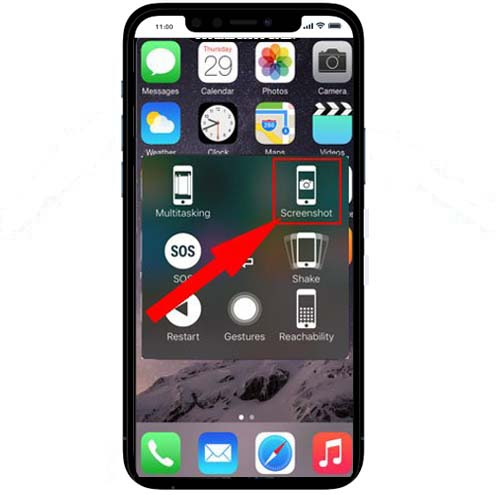
In addition to the main method mentioned above, there are other methods for taking screenshots of the screen in the iOS operating system, such as getting help from the screenshot feature available in the iPhone Quick Access menu or Assistive Touch. Which we will discuss in the following.

Almost all Apple users have enabled the AssistiveTouch feature on their mobile phones. If the Assistive Touch or Quick Access menu is not enabled on your iPhone, follow the path below and set it on:

setting> Accessibility> Accessibility Shortcuts> Assistive Touch

  1. Touch the Assistive Touch feature in the corner of your phone.

    assistive touch in iphone


  2. When using this program, just enter the Device section to display the menus of this section.
    assistive touch button

    Finally, you must select the 
    Screenshot option to take a picture of the iPhone screen.
    Apple iPhone Screenshot Option

3- Siri voice command for  screenshot with iPhone

You can also get help from voice assistants to take screenshots of the screen on iPhone. On an Apple phone, you can also request a screenshot by ordering the iPhone's voice assistant, Siri .

Screenshot on Mac

Siri voice command to take a screenshot: All you have to do is issue the " Hey Siri, take a screenshot " voice commandThis will intelligently take a screenshot of the current page.

Note: Many of the features of iPhones without Apple ID do not work for you. As a result, if you want to know more about how to make an Apple ID, you can use the article Apple Making Apple ID + step-by-step tutorial video on making apple id .

On iPhone mobile phones, you may need to take a screenshot for any reason. In this tutorial, we tried to examine 3 ways to take a photo of the iPhone screen. Taking a screenshot of the iPhone with a button is one of the most common shooting methods, but in some cases you may need to take a photo of the mobile screen with the voice command and the help of Siri Smart Assistant. Or in certain circumstances you may want to take a screenshot without a button. In this article, we will look at some of the most common iPhone screenshots. What other ways do you know to take a picture of a mobile screen.

Pak Urdu Installer Free Download

Free download Pak Urdu Installer, bringing the beauty of Urdu language support to your Windows system. Install effortlessly and start typing...